
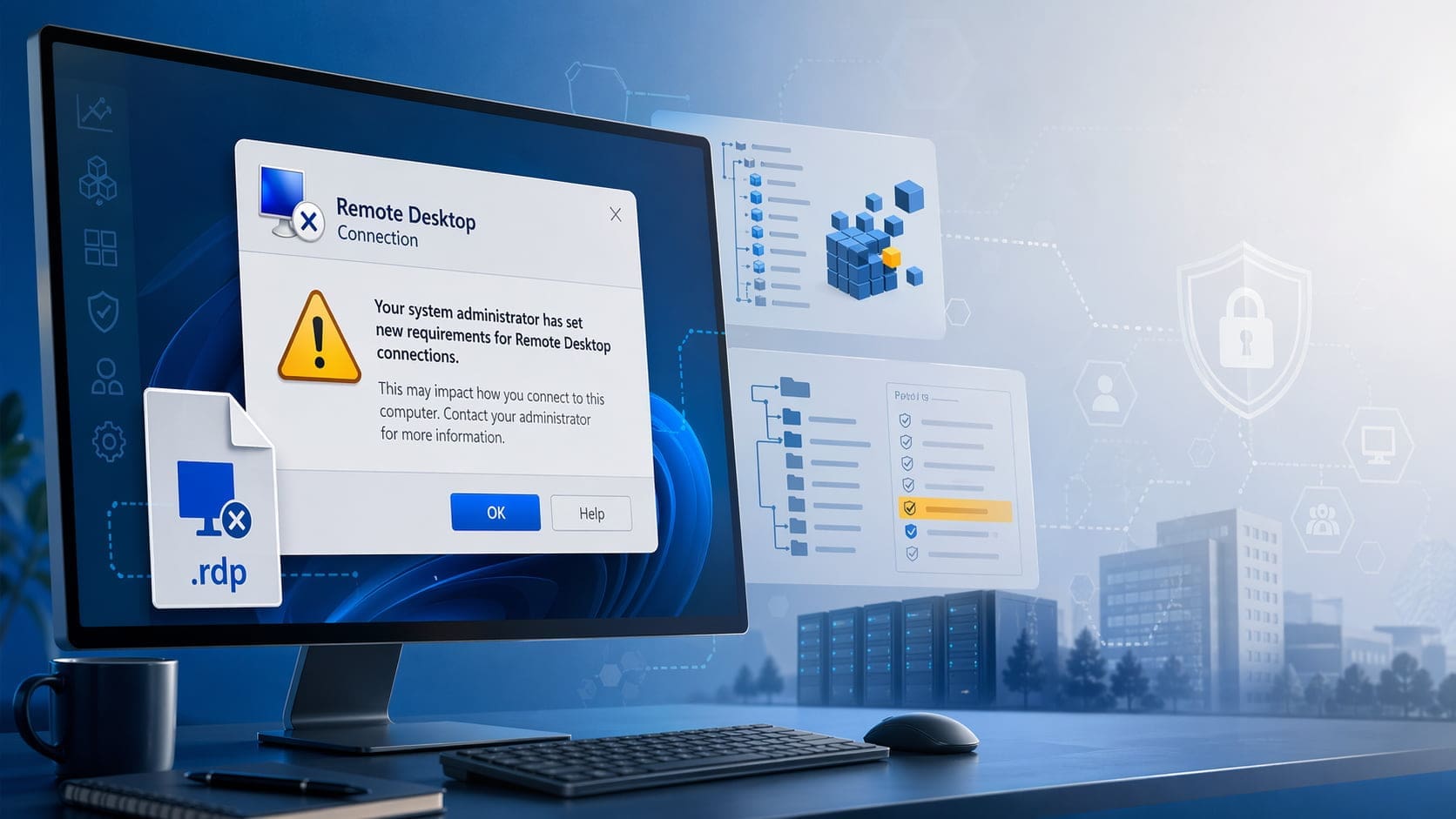
Microsoft’s April 2026 security update changed how Windows handles .rdp files. In many managed environments, that change showed up immediately as new Remote Desktop warnings when users launched saved RDP connections. If your help desk started getting tickets about a new prompt appearing before a Remote Desktop session opens, this is likely the change you are seeing.
This post covers what changed, why users are seeing the warning, and how to temporarily suppress the new behavior on a single machine or across a domain with Group Policy.
What Changed in the April 2026 Windows Update?
According to Microsoft, starting with the April 2026 security update, Remote Desktop Connection now shows new security warnings when users open .rdp files. The goal is to reduce phishing and abuse involving malicious RDP files that request access to local resources such as:
- Clipboard
- Local drives
- Printers
- Smart cards or Windows Hello for Business
- WebAuthn devices
- Audio devices
The update adds more visibility into what an RDP file is attempting to do before the connection starts. That is a reasonable security improvement, but it also changes the behavior that users and administrators were used to in environments that rely on saved .rdp files for daily access to servers, desktops, or published resources.
Why This Is Triggering Support Tickets
In a typical business environment, users are often trained to launch Remote Desktop from a shortcut, a downloaded .rdp file, or a prebuilt session file distributed by IT. After the April 2026 update, those same workflows can suddenly produce a warning even when nothing else in the environment changed.
From the user’s perspective, it looks like Remote Desktop is suddenly unsafe or misconfigured. From the administrator’s perspective, this creates a few immediate problems:
- Increased support volume from users who assume the warning indicates a broken connection
- Confusion around whether the warning is caused by malware, certificate issues, or server-side changes
- Workflow disruption for staff who rely on RDP files throughout the day
- Pressure to suppress the warning quickly while a longer-term plan is evaluated
In other words, the update is doing what Microsoft intended, but it also introduces operational friction in organizations that depend on stable and predictable RDP launch behavior.
The Temporary Registry Fix
Microsoft has documented a temporary workaround that reverts to the previous dialog behavior. The setting is a policy-based registry value on the client:
Registry path
HKEY_LOCAL_MACHINE\Software\Policies\Microsoft\Windows NT\Terminal Services\ClientValue
RedirectionWarningDialogVersionType
REG_DWORDData
1This is a client-side change. It is intended as a temporary measure to reduce disruption while administrators adapt to the new RDP warning model.
Option 1: Add the Key Manually with Regedit
If you only need to suppress the warning on one PC, you can add the registry value directly with Registry Editor:
- Open
regeditas an administrator. - Browse to:
HKEY_LOCAL_MACHINE\Software\Policies\Microsoft\Windows NT\Terminal Services\Client- Create a new
DWORD (32-bit)value named:
RedirectionWarningDialogVersion- Set the value to:
1If the Client key does not already exist, create it.
Option 2: Add the Key from the Command Line
If you want a faster one-off deployment, or you need something that can be scripted for remote support, use an elevated Command Prompt:
reg add "HKLM\Software\Policies\Microsoft\Windows NT\Terminal Services\Client" /v RedirectionWarningDialogVersion /t REG_DWORD /d 1 /fYou can also push the same command through your preferred endpoint management tooling, RMM, startup script, or remote shell process if you only need a short-term tactical fix.
Option 3: Deploy the Fix with Group Policy
If systems are joined to Active Directory, Group Policy is the cleanest way to apply the workaround broadly and consistently.
One straightforward method is Group Policy Preferences:
- Open
Group Policy Management. - Create a new GPO or edit an existing one that targets the affected computers.
- Go to:
Computer Configuration > Preferences > Windows Settings > Registry- Create a new
Registry Item. - Configure the item with the following values:
- Action:
Update - Hive:
HKEY_LOCAL_MACHINE - Key Path:
Software\Policies\Microsoft\Windows NT\Terminal Services\Client - Value Name:
RedirectionWarningDialogVersion - Value Type:
REG_DWORD - Value Data:
1
Link the GPO to the appropriate OU, allow policy refresh, and the setting will be applied to targeted computers without requiring manual edits on each endpoint.
For environments with a larger footprint, this is usually the best short-term response because it gives administrators centralized control and a clean rollback path later.
Important Limitation: This Is Not a Permanent Fix
This point matters. Microsoft explicitly documents this setting as a temporary way to revert the new security dialog behavior. Microsoft also notes that a future Windows update may remove support for this override.
That means administrators should not treat this registry value as a permanent configuration standard. It is better understood as a short-term operational workaround while you evaluate the new warning flow and update internal processes.
What IT Teams Should Do Next
If the warning is disrupting users today, suppressing it temporarily may be the right move. But the longer-term work should focus on adapting to the new model rather than assuming the old behavior will remain available forever.
Practical next steps include:
- Review how
.rdpfiles are being created and distributed - Validate whether local resource redirection settings are actually needed
- Standardize approved RDP workflows for end users
- Update internal documentation and help desk scripts
- Plan for eventual removal of the temporary registry override
For many organizations, the real issue is not just the warning itself. It is the fact that users are encountering a security decision point they were never trained to interpret. That gap is what generates tickets.
Summary
If users began seeing a new Remote Desktop warning after the April 2026 Windows update, the behavior is likely expected and tied to Microsoft’s updated handling of .rdp files. The documented temporary workaround is to set:
HKLM\Software\Policies\Microsoft\Windows NT\Terminal Services\Client\RedirectionWarningDialogVersion = 1You can apply that change:
- Manually in
regedit - By command line with
reg add - At scale through Group Policy Preferences
That said, this should be treated as a short-term mitigation, not a permanent design.