
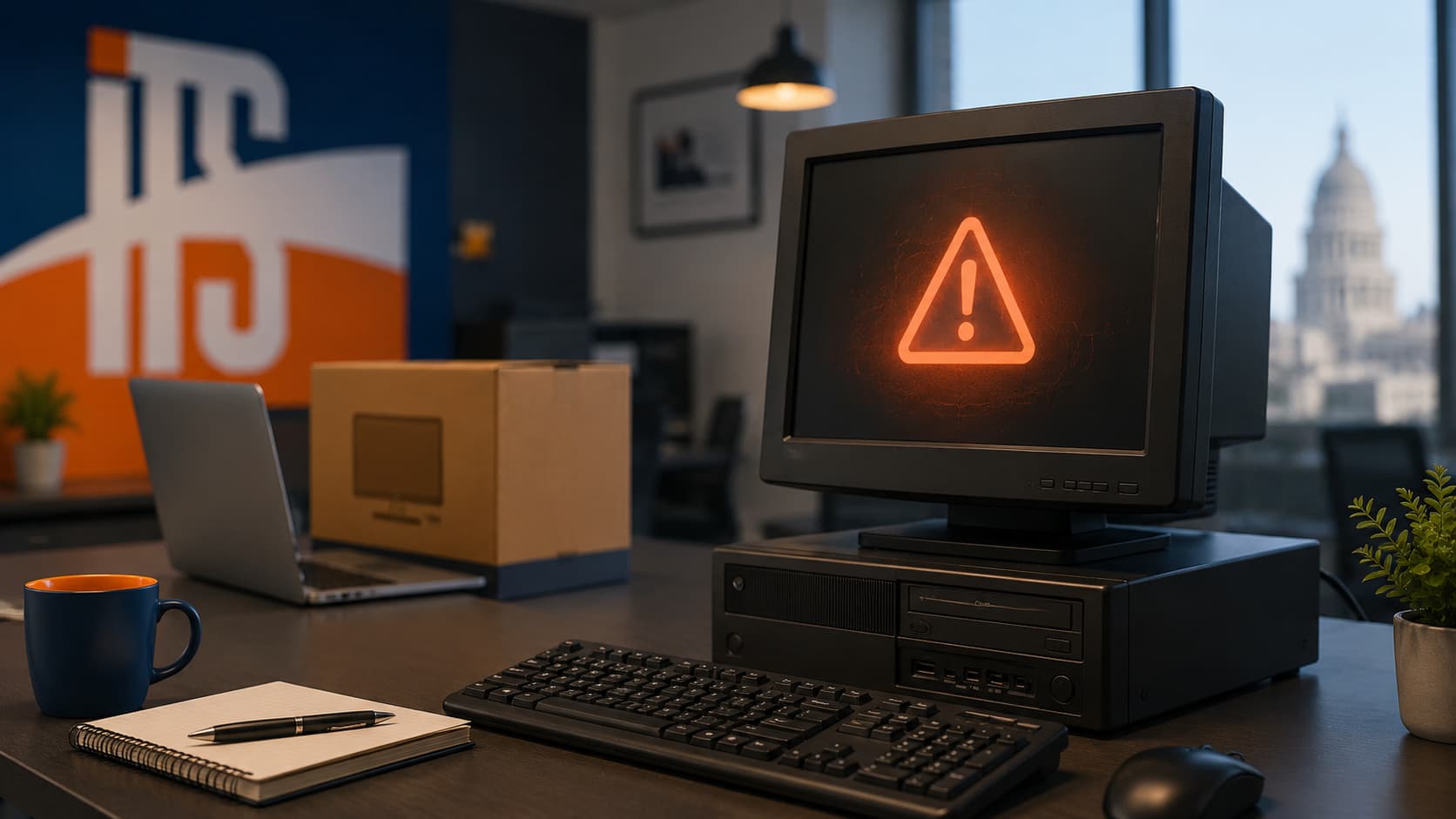
If your company is still using Windows 10 in 2026, you are not alone. Many small businesses have older desktops, specialty software, and tight hardware budgets that make change easy to delay. The problem is that Windows 10 is now unsupported, which means the biggest risk is not that your computers suddenly stop working. The real issue is that they are no longer receiving normal security updates.
That creates a growing gap in protection over time. For small businesses, that can mean higher exposure to malware, ransomware, data loss, and compliance issues. The good news is that you still have practical options. The right move depends on your hardware, your software, and how critical each PC is to your daily operations.
What “unsupported” really means
When an operating system reaches end of support, it does not stop turning on the next day. Your staff can still log in, open files, run applications, and browse the web. That is why many business owners assume it is fine to keep using it.
The problem is that unsupported systems stop getting the regular security fixes that protect against newly discovered threats. Over time, attackers pay attention to those gaps. A computer that still seems fine for day-to-day work can quietly become a weak point in your network.
For businesses, this matters beyond security alone. Unsupported systems can also create problems with cyber insurance requirements, vendor expectations, client contracts, and internal policies. If your business handles sensitive customer information, financial records, or operational data, continuing to rely on outdated PCs becomes harder to justify.
Option 1: Upgrade eligible PCs to Windows 11
For many businesses, the best first step is to identify which Windows 10 computers can be upgraded to Windows 11 without replacement. Technically, many systems with 8th generation Intel processors and newer may qualify for Windows 11. In practice, though, that does not always mean they are the best long-term fit for a business environment.
For most small businesses, we suggest aiming for at least a 10th generation Intel processor and 16GB of RAM or more when planning for reliable day-to-day use. That gives users a better experience with modern business software, web apps, Microsoft 365, security tools, and multitasking.
Before upgrading, it is smart to review a few basics:
- Whether the PC meets Windows 11 hardware requirements
- Whether it has enough performance headroom to remain useful for several more years
- Whether business-critical software is compatible
- Whether files are backed up before the change
- Whether the upgrade should be scheduled after hours to avoid downtime
For newer business PCs, upgrading may be the most cost-effective path.
Option 2: Replace older computers that cannot upgrade well
Some Windows 10 systems are simply too old to move to Windows 11. Others may be technically compatible, but still not worth keeping because performance, age, or limited memory will hold users back. In those cases, replacement is often the smarter decision than trying to stretch unsupported hardware for another year or two.
This is especially true for front-desk systems, bookkeeping PCs, workstations that access customer data, and any computer employees use for email, web browsing, or cloud apps. Those devices face regular exposure to outside threats, so keeping them current matters.
Replacement can also be a chance to clean up bigger issues. Many small businesses end up with a mix of aging computers, inconsistent settings, and old backup habits. Moving to newer hardware gives you an opportunity to standardize devices, improve reliability, and reduce support headaches.
Option 3: Use ESU only as a short-term bridge
Some businesses are not ready to replace every Windows 10 device immediately. Maybe a specialized app still needs testing, or maybe you need more time to budget for hardware refreshes. In those cases, Extended Security Updates, or ESU, may help as a temporary bridge.
But ESU should only be used in rare cases to buy time. It is not a permanent solution, and it should not become the default plan for keeping old systems in place. Its purpose is to reduce risk briefly while you finish moving important systems to supported hardware and software.
For small businesses, ESU can make sense for a limited number of devices with a clear retirement or migration plan. If there is no timeline to replace or upgrade the system, ESU is only delaying a problem that will likely become more expensive later.
Prioritize the systems that matter most
Not every computer carries the same risk. A good 2026 plan starts by identifying which systems are most important to protect first.
Focus on devices that:
- Access email, banking, or customer records
- Store business files locally
- Connect to line-of-business software
- Are used by multiple employees
- Have remote access enabled
If budget is limited, start there. You do not have to solve everything at once, but you do need a clear order of operations.
Don’t wait for a security incident to force the decision
One of the most common mistakes small businesses make is waiting until a PC fails, an employee gets hit with malware, or a compliance question comes up during an audit. By then, the decision is more expensive and more stressful.
A better approach is to assess your Windows 10 devices now, separate upgrade-ready machines from replacement candidates, and build a realistic timeline. That keeps you in control instead of reacting during a crisis.
If your business in central Illinois needs help planning a Windows 10 transition, Illini Tech Services can help you evaluate your devices, reduce security risk, and map out the next steps. Contact Illini Tech Services at 217-854-6260 or [email protected] to get practical support before unsupported systems become a bigger problem.