
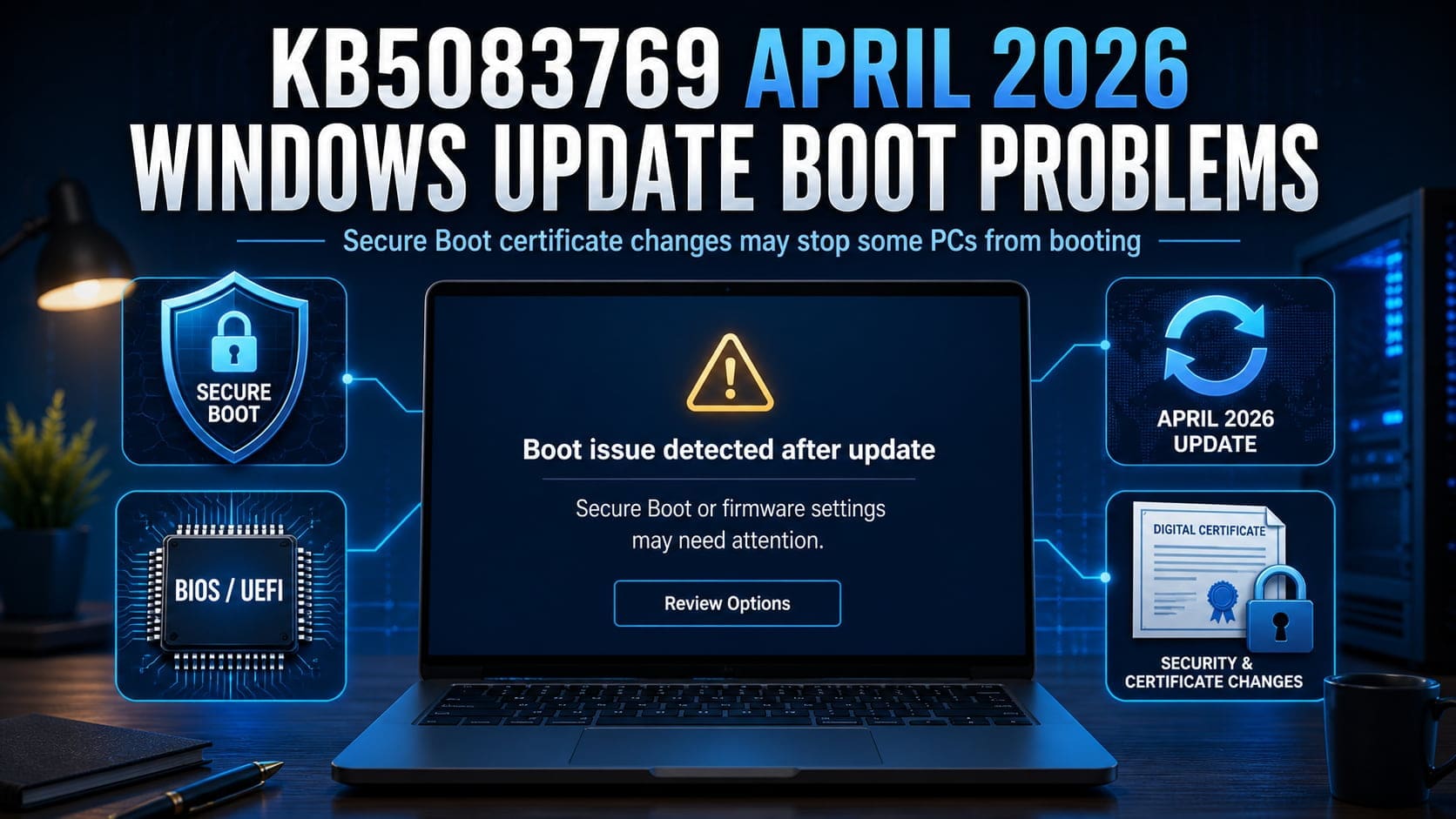
KB5083769 April 2026 Windows Update boot issues are affecting some Windows 11 PCs after Microsoft’s April 14, 2026 cumulative update. The problem appears to be related to Secure Boot certificate changes, BIOS or UEFI firmware compatibility, and systems that may not automatically receive firmware updates through Windows Update. On paper, KB5083769 is a normal Patch Tuesday security update. In practice, some users are running into a much more serious problem: after installing the update, the PC restarts and never makes it cleanly back into Windows.
The short explanation is that Windows is moving from older Microsoft Secure Boot certificates issued in 2011 to newer 2023 certificates. Those older certificates begin expiring in June 2026. Secure Boot uses certificates stored in UEFI firmware to decide whether the Windows bootloader, firmware drivers, and other pre-boot components are trusted. Microsoft says most supported Windows devices should receive the new certificates automatically, but some systems may still require an OEM firmware or BIOS update to apply them correctly.
That firmware dependency is where the KB5083769 Secure Boot issue gets messy. Newer mainstream laptops from major manufacturers usually receive BIOS updates through Windows Update or through a vendor utility. Older desktops, custom-built PCs, white-box systems, boutique gaming rigs, and less common motherboard brands may not receive firmware updates automatically. The Windows update may be ready for the 2023 Secure Boot chain, while the motherboard firmware is not. When that mismatch happens, the system can land in a boot loop, a recovery screen, a BitLocker prompt, or a black screen before Windows loads.
To be clear, every no-boot case after KB5083769 should not automatically be blamed on certificate expiration alone. The more likely problem is an edge case triggered during the transition: outdated BIOS firmware, a Secure Boot database that did not update correctly, a custom Secure Boot configuration, a third-party bootloader, a storage controller driver, or a BitLocker profile tied too tightly to Secure Boot state. That is why some PCs may update normally while others fail immediately after the same Windows update.
One related issue involves BitLocker. Some devices may be asked for the BitLocker recovery key on the first restart after installing KB5083769, especially if certain BitLocker Group Policy settings, PCR7 validation, Secure Boot settings, or the 2023-signed Windows Boot Manager are involved. This is less likely on typical home PCs, but it matters for business machines, managed devices, and systems that have been manually hardened.
If your PC will not start after the KB5083769 April 2026 Windows Update, the first thing to check is whether your BIOS or UEFI firmware is up to date. Look up your exact motherboard, laptop, or desktop model on the manufacturer’s support site and install the latest BIOS or UEFI firmware update. This is especially important on older machines and custom builds. In many cases, the active Secure Boot database can be updated through Windows, but the default Secure Boot database may require a BIOS flash from the device manufacturer.
If a BIOS update is not available, or you need to recover data immediately, disabling Secure Boot may allow the system to boot long enough to back up files, uninstall KB5083769, update drivers, or apply firmware updates manually. Treat this as a troubleshooting step, not the preferred long-term fix. Disabling Secure Boot reduces protection against boot-level malware and may create security or compliance risks. Once the BIOS and Secure Boot certificates are updated, re-enable Secure Boot whenever possible.
Before changing BIOS or Secure Boot settings, make sure you have your BitLocker recovery key. Changing Secure Boot, TPM, boot order, or firmware settings can trigger BitLocker recovery on encrypted systems. If Windows will not load, try Windows Recovery Environment, uninstall the latest quality update, or use installation media to reach repair tools. For business devices, IT teams should test KB5083769 and the Secure Boot certificate rollout on a small sample of each manufacturer, model, and firmware version before deploying widely.
The safest takeaway is simple: the KB5083769 Secure Boot issue is less about one bad Windows patch and more about Windows, Secure Boot, BIOS firmware, BitLocker, and aging hardware meeting at the same time. Keep Windows updated, but do not ignore firmware. If your PC will not boot after KB5083769, update the BIOS first. If that fails, temporarily disable Secure Boot only as a recovery path, then restore Secure Boot once the system is stable.