
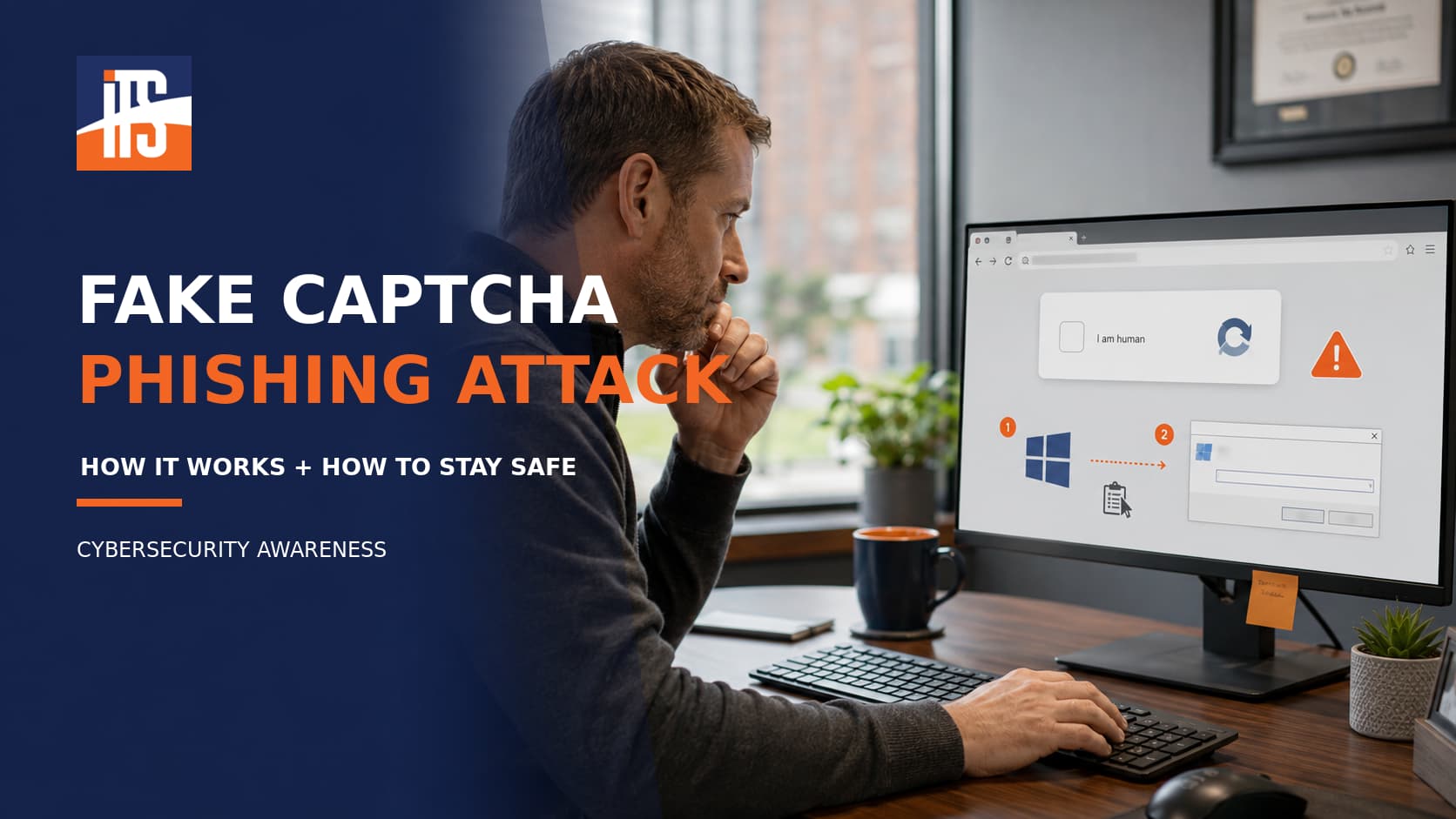
A CAPTCHA should ask you to check a box, identify an image, or complete another task inside your browser. It should never ask you to open the Windows Run dialog, launch PowerShell, or paste a command into your computer.
That is the warning at the center of a growing fake CAPTCHA phishing attack technique. Attackers create verification pages that appear legitimate, then convince visitors to execute malicious commands themselves.
Recent research has connected this tactic to a campaign called StopAndProtect. Researchers found that the operation used nearly 2,000 compromised WordPress websites as infrastructure for malware delivery, command and control, data collection, and ransomware activity. (Check Point Research)
What Is the StopAndProtect Campaign?
Check Point Research began investigating StopAndProtect after identifying its ransomware component in May 2026. The investigation revealed that the ransomware was only one part of a much broader operation.
The attackers had assembled a collection of malicious tools capable of:
- Stealing passwords and selected documents
- Capturing screenshots and monitoring user activity
- Encrypting files
- Locking users out of their computers
- Spreading through shared network folders and USB devices
- Displaying ransom messages
- Creating a communication channel between the attacker and victim
StopAndProtect did not deploy every component on every infected computer. In some cases, the attackers quietly collected file lists and stole selected information before deciding whether to encrypt anything. (Security Affairs)
This distinction matters. A business may experience a serious data breach even when no ransom note appears and no files seem to be encrypted.
The WordPress Connection
Earlier descriptions of fake CAPTCHA attacks often focused on phishing emails that directed users to obviously fraudulent websites. StopAndProtect adds another layer of deception: the fake CAPTCHA may appear on a legitimate WordPress website that has been compromised.
According to Security Affairs’ reporting on StopAndProtect, the attackers used compromised websites for several purposes at once. These sites could host malware, deliver instructions to infected computers, receive activity logs, and store stolen files. (Security Affairs)
A visitor may recognize the website, see a valid HTTPS connection, and assume the page is safe. However, a legitimate domain does not guarantee that every page or script on the website is trustworthy. Once attackers gain control of a WordPress installation, they can modify the site without changing its public address.
Researchers also recovered tools designed to manage compromised WordPress websites in bulk. The operator could upload or remove files, activate fake CAPTCHA pages, change redirects, and control additional malicious content across many sites. (Check Point Research)
How the Fake CAPTCHA Attack Works
The exact commands and malware may vary between campaigns, but the StopAndProtect infection process followed a recognizable sequence.
1. A WordPress Website Is Compromised
Attackers first gain access to a WordPress installation and place malicious files or plugins on the server.
In the sites examined by researchers, a malicious verification plugin could cover the original webpage with a fake CAPTCHA for Windows visitors. The attackers also used hidden must-use plugins, commonly called MU plugins, which load automatically and may not appear in the normal WordPress Plugins screen. (Check Point Research)
2. The Visitor Sees a Fake Verification Prompt
The page tells the visitor that additional steps are required to prove they are human. The instructions may ask the person to:
- Press
Win + R - Paste a verification command
- Press Enter
The webpage may automatically place the command on the visitor’s clipboard. The victim believes they are pasting a harmless verification response, but the clipboard contains a PowerShell command.
3. The User Runs the PowerShell Command
The command launches PowerShell with little or no visible indication that malicious code is running. It then connects to remote infrastructure and retrieves another script.
This is sometimes called ClickFix, a social engineering technique that convinces users to perform the action needed to compromise their own device.
Fake CAPTCHA campaigns are a delivery method, not one specific malware family. Some related attacks have abused tools such as mshta.exe. In the StopAndProtect chain documented by Check Point Research, the initial clipboard command used PowerShell, followed by multiple downloaders and loaders written in .NET. (Check Point Research)
4. Additional Malware Is Deployed
After the initial command runs, the attackers can deliver different components based on their objectives. These may include ransomware, a credential stealer, a screen-locking tool, a data collector, or malware capable of spreading to network shares and removable drives.
Because the user initiated the command, the activity may initially resemble legitimate administrative behavior. Modern endpoint detection tools can still identify suspicious patterns, but organizations should not rely on antivirus signatures alone.
How Large Was the StopAndProtect Operation?
The exposed infrastructure gave researchers an unusual view into the campaign’s scale.
By July 24, 2026, Check Point had identified more than 6,000 unique IP addresses associated with the operation. From mid-May through the end of July, researchers also collected more than 700 archives containing information such as stolen files, passwords, cryptocurrency wallet data, screenshots, and activity logs.
One exposed directory contained more than 20,000 screenshot files, while researchers collected approximately 31,000 screenshots during the monitoring period. These images included desktops, browser activity, security software notifications, encrypted file lists, and ransom messages. (Security Affairs)
The numbers should not be interpreted as an exact victim count, but they demonstrate that this was not a small or isolated attack.
Why Fake CAPTCHA Phishing Is Effective
This attack succeeds because it combines technical tools with familiar user behavior.
It Abuses a Trusted Process
People encounter CAPTCHAs regularly. They are accustomed to following unusual verification instructions, especially when trying to access a website quickly.
The Victim Performs the Critical Action
The malicious webpage does not necessarily need to exploit a browser vulnerability. Instead, it persuades the user to launch the command.
It Uses Legitimate Windows Tools
PowerShell is an important administrative tool used by IT professionals and software developers. Blocking every PowerShell action is rarely practical, so attackers attempt to hide malicious activity among legitimate use.
The Website May Look Trustworthy
A compromised WordPress website may belong to a real company, organization, or publisher. The familiar domain can make the fake verification prompt appear more credible.
It Can Produce Different Outcomes
The same initial infection can lead to credential theft, surveillance, network propagation, data theft, or ransomware. The absence of encrypted files does not mean the computer is safe.
Warning Signs Employees Should Recognize
Close the webpage immediately when a CAPTCHA or verification prompt asks you to:
- Open the Windows Run dialog
- Launch PowerShell, Command Prompt, Terminal, or another system utility
- Paste a command copied by the webpage
- Run a script or executable file
- Disable antivirus software or browser protections
- Ignore a Windows security warning
- Complete verification outside the browser
A legitimate CAPTCHA should remain inside the webpage. It does not need direct access to Windows administrative tools.
What to Do After Running a Suspicious CAPTCHA Command
Someone who has already followed the instructions should not continue using the computer as though nothing happened.
Take these steps promptly:
- Disconnect the device from the network. Turn off Wi-Fi or unplug the network cable to limit further communication and spreading.
- Contact your IT provider or security team. Report exactly what happened, including the webpage visited and the instructions followed.
- Avoid entering additional passwords. Do not access email, financial services, cloud applications, or sensitive business systems from the affected computer.
- Preserve evidence. Do not delete browser history, scripts, downloads, or system files unless instructed by the incident response team.
- Reset exposed credentials from a clean device. Follow your IT provider’s guidance regarding password changes, session revocation, and multifactor authentication.
- Investigate connected systems. If the malware could access network shares, removable drives, or saved credentials, additional computers and accounts may require review.
Reporting the incident quickly gives the response team a better chance of containing it before data is stolen or other systems are affected.
How Businesses Can Defend Against Fake CAPTCHA Attacks
Provide Practical Security Awareness Training
Employees should be shown examples of fake CAPTCHA prompts and taught one simple rule:
A website should never ask you to paste a command into Windows to prove you are human.
Training should also explain how to report a suspicious page immediately without fear of punishment.
Use Endpoint Detection and Response
Endpoint detection and response, commonly called EDR, monitors behavior rather than relying only on known malware signatures. It can help identify suspicious PowerShell activity, unexpected network connections, credential access, and attempts to spread between systems.
Monitor PowerShell Activity
PowerShell Script Block Logging can record the content of processed commands and scripts. In Windows PowerShell 5.1, script block activity is recorded through Event ID 4104 when the feature is enabled. Organizations should centralize important logs and protect them from unauthorized modification. (Microsoft Learn)
Implement Application Control
Microsoft App Control for Business or carefully designed AppLocker policies can restrict which applications and scripts users are permitted to run. Policies should be tested in audit mode before enforcement to avoid interrupting legitimate business applications. Microsoft describes AppLocker as a defense-in-depth control and recommends App Control for Business when stronger application control is required. (Microsoft Learn)
Limit Administrative Privileges
Employees should not use administrator accounts for normal work. Restricting privileges can reduce the damage caused when a user is tricked into running a malicious command.
Require Multifactor Authentication
Multifactor authentication can reduce the usefulness of a stolen password. It should be enabled for email, cloud services, remote access, WordPress administrator accounts, and other important systems.
Maintain Tested Backups
Critical business data should be backed up using a process that prevents an infected computer from modifying every backup copy. Recovery procedures should be tested before an incident occurs.
How WordPress Owners Can Protect Their Websites
The StopAndProtect campaign demonstrates that website security is also customer security. A compromised website can harm visitors even when the business itself is not the attacker’s final target.
WordPress administrators should:
- Keep WordPress core, plugins, and themes updated
- Delete unused or unsupported plugins and themes
- Install software only from trusted sources
- Use unique administrator accounts and strong passwords
- Require multifactor authentication for administrators
- Review unfamiliar administrator accounts
- Inspect the
wp-content/mu-pluginsdirectory for unexpected files - Monitor recent file changes and outbound server connections
- Use a web application firewall
- Maintain tested backups outside the public website directory
- Investigate unexplained redirects, verification pages, or injected scripts
WordPress’s official security guidance identifies current software, trusted extensions, limited access, appropriate file permissions, logging, monitoring, and reliable backups as important parts of a secure installation. (WordPress Developer Resources)
Researchers examined one StopAndProtect-related website that was still using a WordPress version from 2021 and had nearly 40 identified weaknesses. That single example does not establish how every website in the campaign was compromised, but it illustrates the risks created by neglected software and plugins. (Check Point Research)
A CAPTCHA Should Never Require a Windows Command
StopAndProtect shows how attackers can combine compromised websites, social engineering, PowerShell, credential theft, surveillance, and ransomware in one operation.
The most important lesson for employees is simple: never paste a command into Windows because a webpage calls it a verification code.
For website owners, the lesson is equally important. A neglected WordPress installation can become infrastructure for attacks against customers, employees, and unrelated organizations.
Illini Tech Services helps Central Illinois businesses strengthen cybersecurity through managed IT services, endpoint protection, email security, security assessments, and practical technology support. If your organization encounters a suspicious CAPTCHA, possible malware infection, or compromised website, contact Illini Tech Services at 217-854-6260 or [email protected]. (Illini Tech Services)