Fake security alerts can be alarming. They may claim that McAfee detected a virus, your subscription has expired, or your computer is infected. These messages often use recognizable logos, urgent language, and repeated notifications to pressure you into clicking.
In many cases, these alerts are not coming from McAfee, Microsoft, or antivirus software installed on your computer. They are website notifications that were accidentally allowed in Microsoft Edge. Fortunately, you can usually clear fake spam popups in Microsoft Edge by removing the suspicious website’s permissions.
How Fake Security Popups Get Into Edge
Websites can ask for permission to send notifications. This feature is useful for trusted services such as calendars, email platforms, and news websites. However, misleading sites may disguise the request behind a fake verification message, download button, or “Click Allow to continue” prompt.
Once permission is granted, the site can send notifications that resemble legitimate Windows security warnings. Clicking one may lead to a questionable website, unwanted software, a fake support number, or a page requesting payment information.
Do not click links, buttons, or phone numbers inside a suspicious notification. Instead, remove the website’s permission through Edge settings.
Remove the Suspicious Website from Microsoft Edge
Follow these steps to remove the site responsible for the notifications:
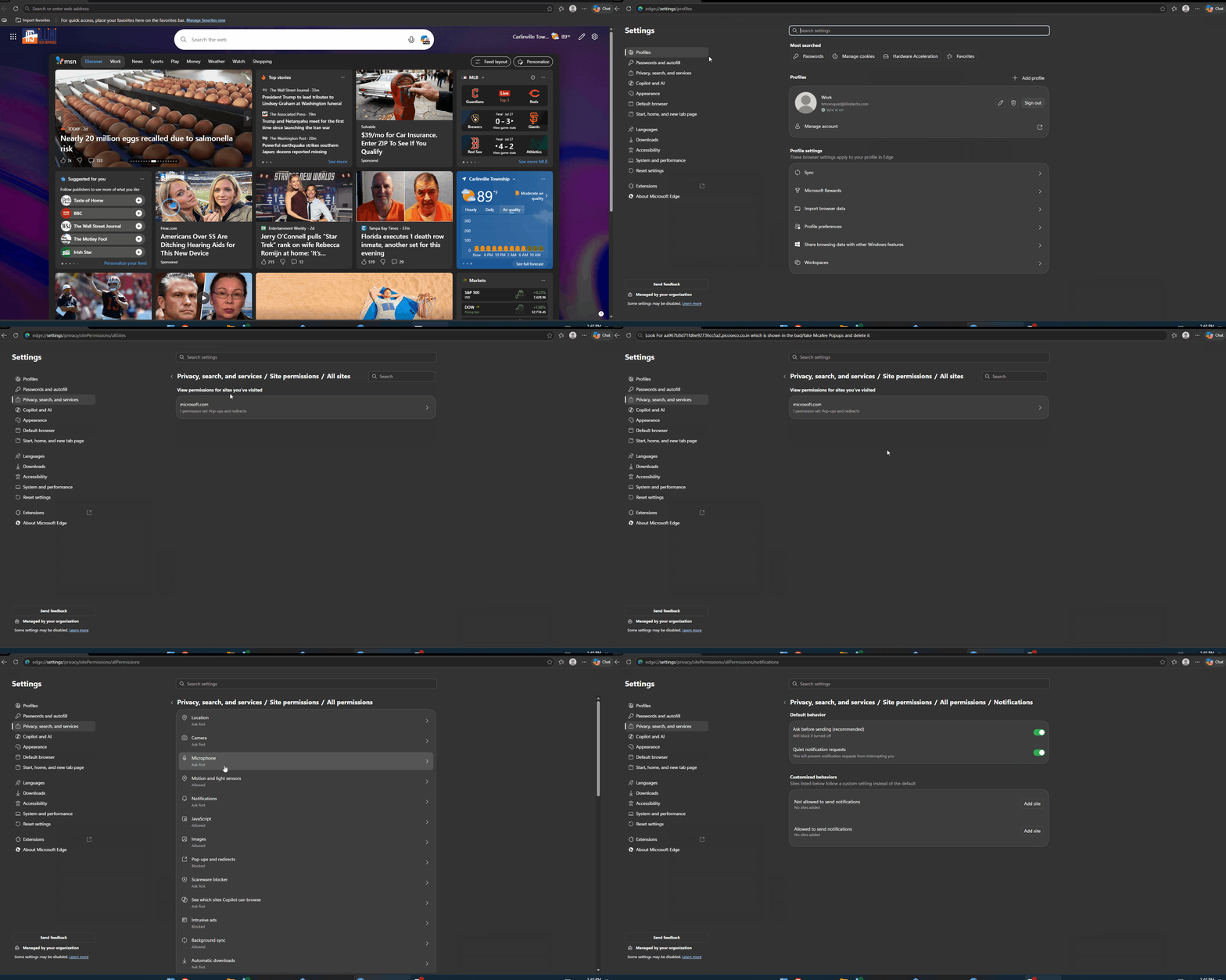
- Open Microsoft Edge.
- Click the three horizontal dots in the upper-right corner.
- Select Settings.
- Choose Privacy, search, and services from the menu on the left.
- Scroll to or select Site permissions.
- Click All sites to view websites that have stored permissions in Edge.
- Look for an unfamiliar or suspicious address. In the accompanying tutorial, the example is
ExampleMaliciousURL.co.in, but the address on your computer may be different. - Select the suspicious site and remove its stored permissions and data. Depending on your version of Edge, the option may appear as Delete, Remove, or Reset permissions.
Review the address carefully before removing it. A random-looking domain, misspelled company name, or site you do not remember visiting deserves closer attention. Avoid changing permissions for legitimate websites unless you no longer want them to use those features.
Enable Quiet Notification Requests
After removing the suspicious site, adjust Edge’s notification settings to reduce disruptive permission prompts:
- Return to the previous Site permissions page.
- Click All permissions.
- Select Notifications.
- Make sure Ask before sending remains enabled so websites cannot automatically send notifications.
- Turn on Quiet notification requests.
Quiet requests make notification prompts less intrusive. This can reduce the chance of accidentally approving a request while browsing, although it does not replace careful judgment. Only allow notifications from websites you recognize and trust.
Close the Settings tab when finished. The fake McAfee notifications should stop if they were being generated by the removed website.
What If the Popups Continue?
If alerts continue, return to the Notifications page and review the Allowed to send notifications list for additional unfamiliar sites. Remove or block anything suspicious.
You should also update Edge, check installed browser extensions, and run a scan with Windows Security or another trusted security product. If you downloaded a file, installed a program, entered a password, or provided payment information after clicking an alert, additional cleanup may be necessary. Change affected passwords from a trusted device and contact your bank when financial information may have been exposed.
Get Help Removing Fake Popups
Website notification scams are frustrating, but removing the unwanted permission often resolves the problem quickly. If the alerts continue or you are concerned that unwanted software was installed, Illini Tech Services can help inspect your computer and secure your browser.
For technology support in central Illinois, call 217-854-6260 or email [email protected].
Video Tutorial (GIF)