
If your computer feels slow, adding memory can sometimes make a big difference. But RAM is not a magic fix for every slow PC. If your storage drive is failing, your processor is overloaded, or Windows is loaded with too many background programs, more RAM may not solve the real problem.
The good news is that Windows gives you a fairly simple way to check whether you might benefit from adding more RAM to PC: Task Manager. You do not need to be an IT expert to understand the basics. You just need to know which numbers matter and what they are trying to tell you.
For PCs running Windows 11 in 2026, Illini Tech Services generally recommends 16 GB of RAM as the minimum for a good everyday experience. Some very light-use systems can get by with less, but for most home users, office workers, students, and small businesses, 16 GB is the practical starting point.
What RAM Does in Plain English
RAM, or memory, is your computer’s short-term workspace. When you open programs, browser tabs, files, email, documents, and background apps, Windows loads active information into RAM so it can be accessed quickly.
When your PC has enough RAM, switching between apps feels smooth. When it does not, Windows has to work harder by moving data between memory and your storage drive. That process is much slower, especially if your computer has an older hard drive instead of a solid-state drive.
This is why a PC can feel fine with one or two programs open but become painfully slow once you have Outlook, QuickBooks, Teams, Chrome, a dozen browser tabs, and several documents open at the same time.
How to Check Memory Usage in Task Manager
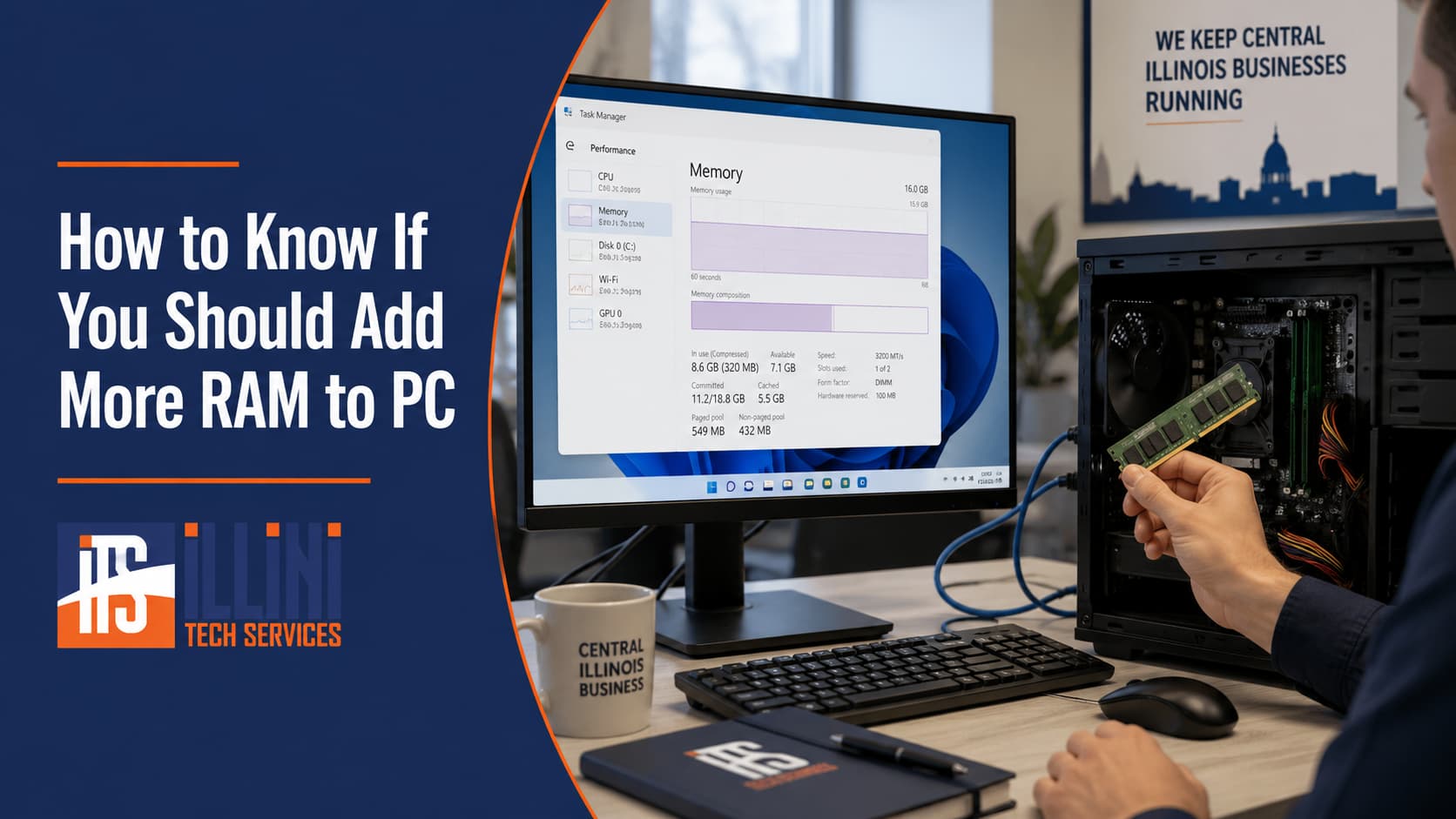
On a Windows PC, press Ctrl + Shift + Esc to open Task Manager. If you only see a small window, click More details. Then go to the Performance tab and select Memory.
This screen shows several useful numbers:
- Memory usage percentage
- Total installed memory
- Available memory
- In use
- Committed
- Cached
- Speed and slots used
For a simple first check, look at the memory usage percentage. If your PC is regularly using 80% to 90% or more of its RAM during normal work, that is a strong sign that additional memory could help.
The key phrase is “during normal work.” Do not check right after restarting if you have not opened anything yet. Open the programs, tabs, and files you normally use, then check Task Manager.
Available Memory: The Quick Reality Check
The Available number tells you how much RAM Windows can still use without much trouble. If you have several gigabytes available, RAM probably is not your main bottleneck at that moment.
If available memory is very low, such as a few hundred megabytes, your PC may be running out of breathing room. That can lead to sluggish switching between windows, delays when opening programs, browser tabs reloading unexpectedly, or the whole system feeling “sticky.”
For example, if you have 8 GB of RAM and Task Manager shows 7.5 GB in use with very little available, you are likely pushing the limits. In 2026, we would generally recommend upgrading that Windows 11 PC to at least 16 GB if the hardware supports it.
If you already have 16 GB and only 8 GB is in use during your normal workload, adding more RAM may not improve speed much unless your workload changes.
What “In Use” and “Committed” Mean
In use means the amount of physical RAM currently being used by Windows, apps, and background services. This is the number most people should pay attention to first.
Committed is a little different. It shows how much memory Windows has promised to programs, even if all of that memory is not currently sitting in physical RAM. You may see it displayed like this: 12.5/18.9 GB.
The first number is the amount currently committed. The second number is the limit, which includes your physical RAM plus a page file on your storage drive.
If the committed number is getting close to the limit, or if it stays very high while your PC feels slow, that is another sign your system may need more RAM. It means Windows and your programs are asking for more memory than your computer can comfortably provide.
Is Memory Compression a Bad Sign?
Windows includes a feature called memory compression. You may see it referenced in Task Manager or notice a system process using memory for compression.
Memory compression is not automatically bad. It is a normal Windows feature designed to help your PC avoid using the slower page file as much. In simple terms, Windows squeezes some inactive memory so it can keep more data in RAM instead of moving it to storage.
However, if your computer is frequently relying on memory compression while RAM usage is very high, that can be a warning sign. It suggests Windows is working hard to stretch limited memory. If the system feels slow at the same time, adding RAM may help reduce that pressure.
So the plain-English answer is: memory compression by itself is not a disaster, but memory compression plus high RAM usage plus poor performance is a clue worth paying attention to.
Who Benefits Most From Adding RAM?
The people most likely to benefit from more RAM are those who keep many things open at once.
This includes users who regularly have:
- Many Chrome or Edge browser tabs open
- Several browser windows
- Microsoft Teams or Zoom
- Outlook
- Office documents and PDFs
- Accounting, dispatch, quoting, or business software
- Cloud sync tools like OneDrive or Dropbox
- Security software and other background utilities
Browsers such as Chrome and Edge are especially known for using a lot of RAM. Each tab, extension, and web app can consume memory. If you use web-based tools all day, your browser may be one of the biggest memory users on the PC.
For many modern users, 8 GB of RAM is no longer a comfortable target for Windows 11. It may technically run, but it leaves little room for real-world multitasking. 16 GB is the minimum we suggest in 2026, and heavy multitaskers, designers, engineers, and people working with large files may benefit from 32 GB or more.
When More RAM May Not Help
Adding RAM helps when memory is the bottleneck. It may not help much if your PC is slow because of an old hard drive, malware, overheating, failing hardware, too many startup apps, or an underpowered processor.
That is why checking Task Manager matters. If memory usage is low but disk or CPU usage is constantly high, the slowdown may have another cause.
Need Help Deciding?
If your PC slows down when you have several tabs, windows, and programs open, checking Task Manager is a smart first step. High memory usage, low available memory, high committed memory, and frequent memory compression can all point toward a RAM upgrade being worthwhile.
Illini Tech Services can help determine whether adding RAM makes sense for your computer or whether another upgrade would give you better results. If you need help with a slow PC in central Illinois, contact Illini Tech Services at 217-854-6260 or [email protected].