
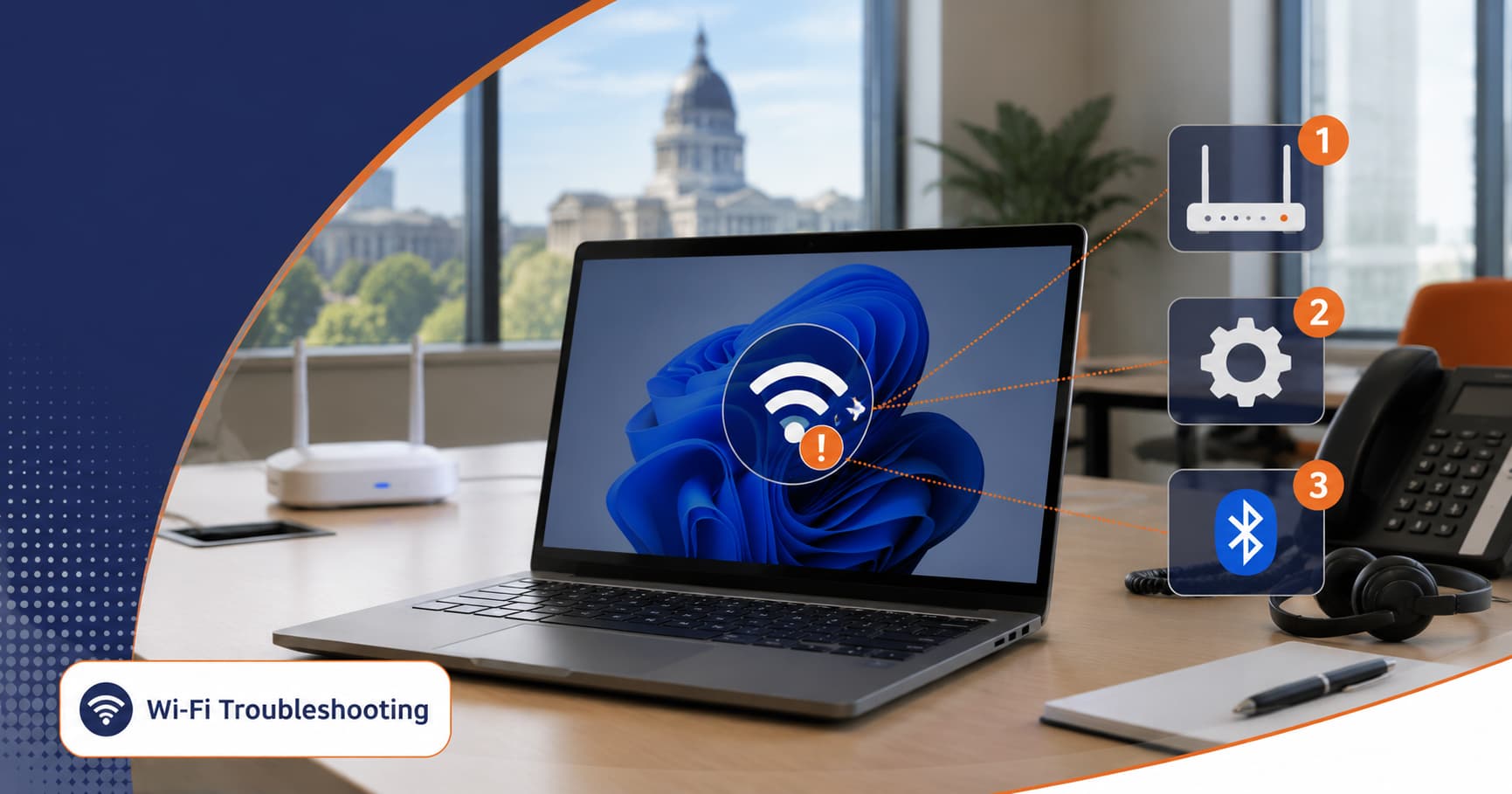
When Wi-Fi keeps dropping on a Windows 11 laptop, the problem can feel completely random. One minute everything works, and the next minute a video call freezes, a file upload fails, or the connection disappears for a few seconds and comes back.
The good news is that these issues usually fall into a few common categories: router trouble, outdated drivers, Windows power-saving settings, Bluetooth interference, weak signal, or failing network equipment. A simple checklist can help you narrow it down without guessing.
Start by figuring out whether the problem is the laptop or the network
The first question is whether the Wi-Fi problem happens on just one device or on everything.
Try connecting another laptop, phone, or tablet to the same network in the same room. If only one Windows 11 laptop keeps disconnecting, the issue is more likely tied to that PC’s wireless adapter, driver, or settings. If several devices drop at the same time, the router, access point, or internet connection is the more likely cause.
This one step saves a lot of time. It tells you whether to focus on Windows troubleshooting or on the network itself.
Check the easiest Windows 11 fixes first
If the issue appears limited to one PC, start with the adapter settings.
Open Device Manager, expand Network adapters, right-click your Wi-Fi adapter, and choose Properties. Under the Power Management tab, look for the setting that allows the computer to turn off the device to save power. If that box is checked, disable it and test again.
Power-saving features can be helpful for battery life, but they can also cause brief disconnects, especially during video calls, cloud backups, or other steady traffic.
It is also worth restarting the laptop after Windows updates. Some wireless problems show up only after a driver or system update has partially applied and needs a full reboot to settle in.
Update Wi-Fi and Bluetooth drivers, especially on Intel adapters
Drivers are one of the most common causes of unreliable Wi-Fi on Windows 11. If the wireless connection drops during Zoom, Teams, streaming, or file syncing, an outdated or buggy driver may be the real issue.
If your laptop uses an Intel wireless adapter, it is smart to install the latest drivers directly from Intel rather than relying only on older versions delivered through Windows Update or a laptop manufacturer’s support page.
As of April 28, 2026, Intel lists version 24.40.0 as the latest package for both its Wi-Fi drivers for Windows 10 and Windows 11 and its Wireless Bluetooth drivers for Windows 10 and Windows 11.
To check whether your PC has an Intel-based adapter:
- Open Device Manager
- Expand Network adapters
- Look for a name such as Intel Wi-Fi 6, Intel Wi-Fi 6E, Intel Wi-Fi 7, or Intel Wireless
- Expand Bluetooth and look for Intel Wireless Bluetooth
If both the Wi-Fi and Bluetooth hardware are Intel, update both. That matters because Wi-Fi and Bluetooth often share the same wireless card, and an outdated Bluetooth driver can sometimes contribute to instability too.
Don’t overlook Bluetooth interference
Bluetooth interference is easy to miss because it often shows up only under certain conditions. Maybe the Wi-Fi drops when wireless earbuds connect, when a Bluetooth mouse is active, or during video calls when several devices are in use at once.
This is more common on crowded 2.4 GHz networks, where Wi-Fi and Bluetooth can compete for space. If possible, connect the laptop to a 5 GHz or 6 GHz Wi-Fi band instead of 2.4 GHz. That alone can reduce dropouts.
If the problem seems tied to Bluetooth usage, update both drivers first. Then test by temporarily turning Bluetooth off and seeing whether the Wi-Fi stabilizes.
Check signal strength and router placement
Sometimes the issue is not the laptop at all. It is just a weak or inconsistent wireless signal.
If the laptop disconnects only in one room, only upstairs, or only during busy times of day, the router or access point placement may be part of the problem. Routers hidden behind furniture, placed in a basement corner, or surrounded by walls and appliances often create dead spots and unstable coverage.
Try moving closer to the router and test again. If the connection improves immediately, signal quality is likely part of the problem. In a business setting, this may point to aging access points, poor placement, or a network that no longer matches the building’s current needs.
When the problem is probably bigger than the PC
If multiple devices are dropping, if the router has not had a firmware update in a long time, or if the Wi-Fi fails during heavy office usage, the problem may be the network equipment rather than Windows 11.
That is especially true in workplaces with older routers, overloaded access points, awkward building layouts, or a growing number of connected devices. At that point, replacing drivers on one laptop may help a little, but it will not solve the root cause.
If your Wi-Fi keeps disconnecting on Windows 11 and you want help sorting out whether the issue is the PC, the router, or the network itself, Illini Tech Services can help. We support homes, small businesses, and organizations across central Illinois. Call 217-854-6260 or email [email protected] to get the issue diagnosed and fixed.