
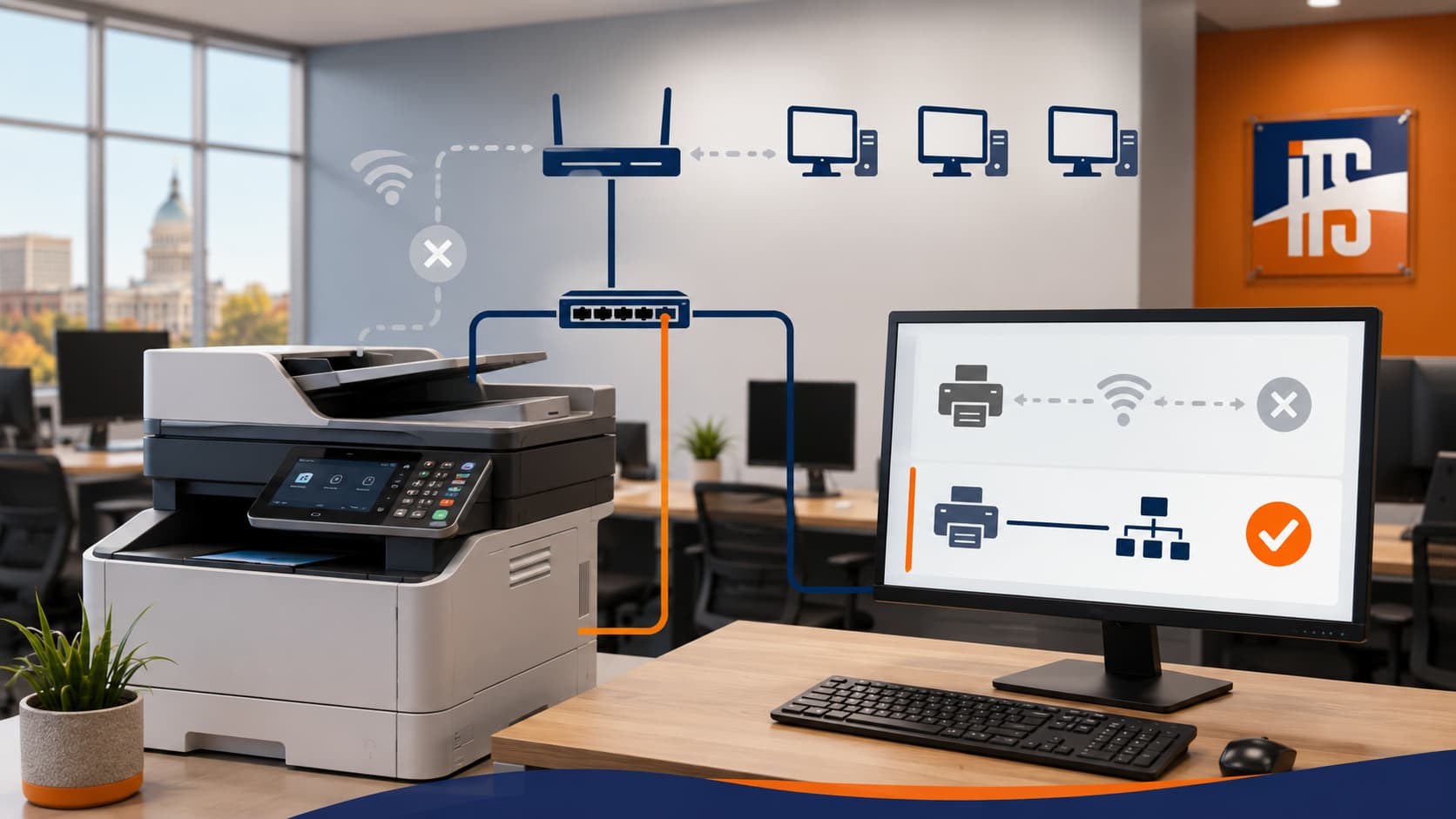
Printer problems never seem to arrive at a convenient time. One day everything is working, and the next day a shared office printer suddenly shows as offline after a Windows 11 update. In many small offices, the root cause is not the printer itself. It is often the way the printer was installed.
A common issue is that Windows sets up network printers using a WSD port instead of a standard TCP/IP port. WSD can work for a while, but it is also one of the more common reasons printers become unreliable, disappear from devices, or randomly stop responding. Understanding the difference can help business owners choose a more stable setup.
What Is a WSD Printer Port?
WSD stands for Web Services for Devices. In plain language, it is a method Windows uses to automatically discover devices on the network and connect to them with minimal setup.
That convenience is why many printers get installed this way. You plug the printer into the network, Windows finds it, and the printer appears ready to use. For home use or light printing, that may seem fine at first.
The problem is that WSD relies heavily on automatic discovery and communication between Windows and the printer. If a Windows update changes something in the network stack, printer services, or device discovery behavior, that connection can become unstable. When that happens, the printer may show as offline even though it is powered on and connected.
What Is a Standard TCP/IP Printer Port?
A standard TCP/IP port is a more direct way to connect to a network printer. Instead of relying on Windows to constantly discover the device, the computer talks to the printer using its IP address.
Think of it like the difference between trying to find someone by asking around the office every time you need them versus going straight to their desk because you already know exactly where they sit.
When a printer uses a standard TCP/IP port, Windows has a fixed address for that printer. This makes communication simpler and usually more dependable, especially in business environments where multiple users rely on the same device every day.
Why WSD Causes Problems After Windows 11 Updates
WSD is not always broken, but it is often less predictable than a direct TCP/IP setup. After a Windows 11 update, a printer using WSD may start to:
Show as offline even when it is on
Vanish from the list of available printers
Print intermittently or with long delays
Stop responding after a reboot or network change
This usually happens because WSD depends on automatic discovery, background services, and network communication that can be disrupted by updates, firewall changes, or router behavior. If the printer also receives a different IP address from the router, that can add another layer of confusion.
In a small office, this leads to a frustrating cycle of removing and reinstalling the printer, only for the same problem to return later.
Why a Static IP and TCP/IP Port Is Usually the Better Fix
For long-term reliability, many small offices are better off assigning the printer a static IP address and reinstalling it using a standard TCP/IP port.
A static IP means the printer keeps the same network address instead of changing over time. That gives every computer a consistent destination for print jobs. Pairing that with a TCP/IP port removes the guesswork that often comes with WSD.
The main benefits are:
More reliable printer communication
Fewer “offline” errors after updates
Easier troubleshooting when problems happen
Better consistency for shared office printers
This approach is especially helpful for offices with one or two central printers that multiple employees use throughout the day. It creates a cleaner, more stable setup than relying on automatic discovery.
A Plain-English Example
Imagine your office printer is installed with WSD. At first, it works normally because Windows can see it on the network. Then a Windows 11 update changes how device discovery behaves, or the printer gets a new IP address from the router overnight. Suddenly, Windows thinks the printer is unavailable, even though nothing looks wrong at the printer itself.
Now compare that to a printer with a static IP and a standard TCP/IP port. The printer always lives at the same network address, and each computer knows exactly where to send print jobs. There are fewer moving parts, which usually means fewer surprises.
When to Switch from WSD to TCP/IP
If your printer regularly goes offline, disappears, or needs to be reinstalled after Windows updates, it is a strong sign that the current setup should be reviewed. This is particularly true in offices where printer downtime slows down invoices, forms, labels, or daily operations.
Switching to TCP/IP is not just a workaround. In many cases, it is the more professional and dependable way to manage a network printer in a business setting.
Final Thoughts
Printer issues after Windows 11 updates are common, but they are often fixable. If your office printer is using a WSD port, changing it to a standard TCP/IP port and assigning a static IP address can make the connection much more stable over time.
If your business in central Illinois is dealing with printers that keep going offline, Illini Tech Services can help troubleshoot the setup and make sure your network printers are configured for reliability. Contact Illini Tech Services at 217-854-6260 or [email protected] to get help with office printer issues, network setup, and day-to-day IT support.